Steps to Adjust Portal Filters and Lead View
- Log into the EverConnect Portal.
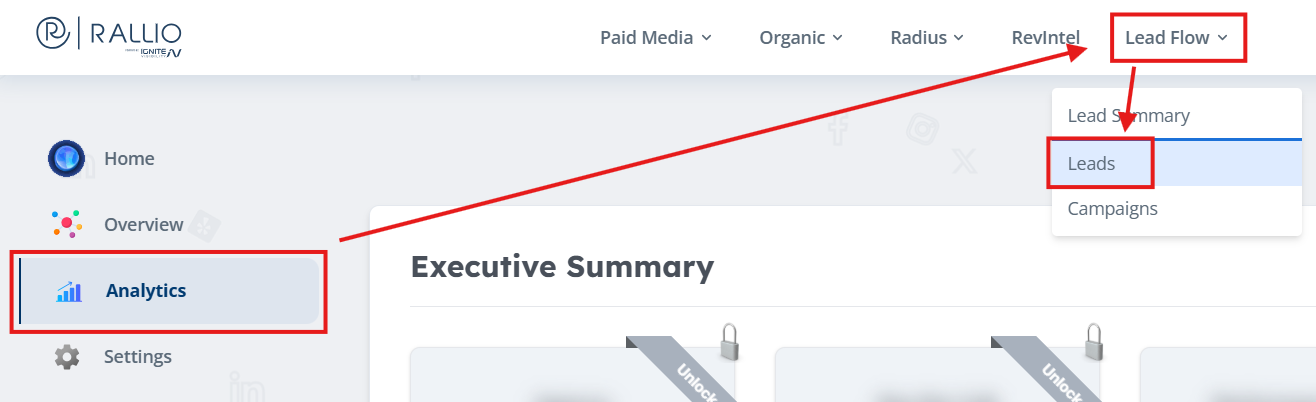
- Navigate to Analytics, Lead Flow, and then Leads.
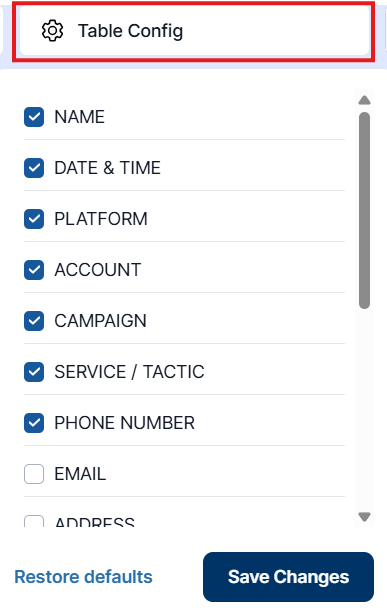
There are a variety of methods to configure your lead view. - Adjust which data appears in your view by clicking the Table Config button. Simply check or uncheck the columns you would like to appear.
- Use the Locations button to quickly filter by the billing entity. Location names are normally generated from your individual Google Business Profile(s), and each location represents a single “brick-and-mortar” location of your business.
- The Filter button allows you to further filter your leads to your exact specifications.
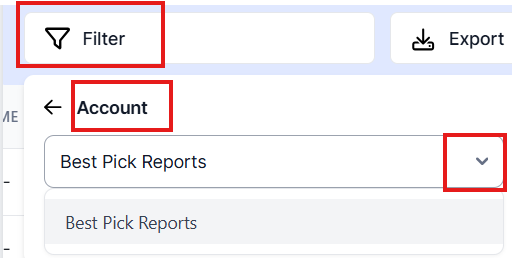
- Use the Account filter to filter by each individual Best Pick Reports or Five Star Rated account.
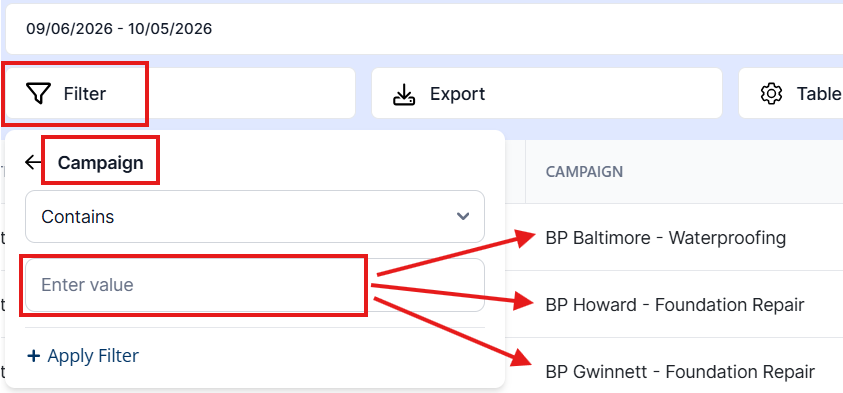
- The Campaign filter can be used to drill down to the individual campaign level. For example, in the image below the user could filter to:
- “BP Baltimore - Waterproofing” → this would show results for this one campaign.
- “Baltimore” → this would show all campaigns set up for the Baltimore book.
- “Waterproofing” → this would show all campaigns set up for the Waterproofing category.
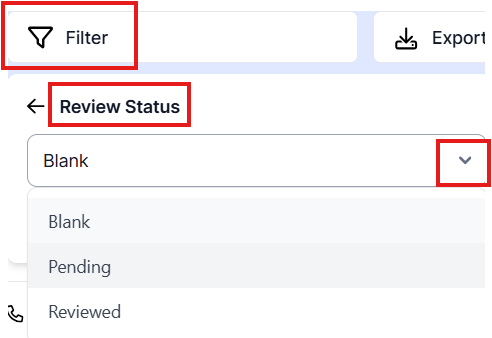
- You can even filter by Review Status to monitor requests and final outcomes.
- Use the Account filter to filter by each individual Best Pick Reports or Five Star Rated account.
- Export your report to a CSV file by selecting the Export button in the header.
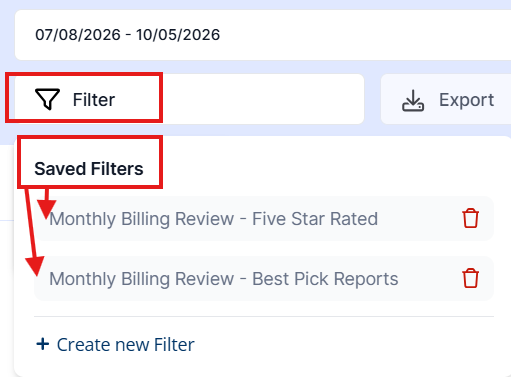
- If you would like to quickly filter by the same criteria on a regular basis, click the Save Filter Set button and name your filter. With your next visit to this page, simply click Filter → Saved Filters → and select your saved filter.